


New Graphics Settings: NVIDIA DLSS and DLAA
Anti-aliasing and resolution scaling settings have been reworked. NVIDIA RTX graphics cards now support DLSS and DLAA.
Anti-Aliasing is now a single setting
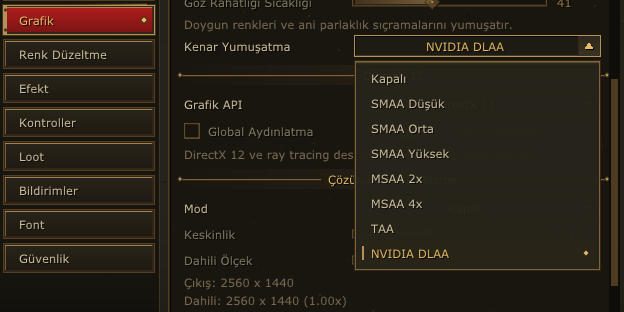
MSAA, SMAA and TAA used to be separate toggles. They are now combined into a single Anti-Aliasing menu. Just like in other games, you pick one method from the list:
Off
SMAA (Low / Medium / High)
MSAA (2x / 4x)
TAA
NVIDIA DLAA (new)
Your previous settings are kept; there is no need to pick them again after the update.
What is NVIDIA DLAA?
DLAA is NVIDIA's AI-powered anti-aliasing. The game is still rendered at your own resolution, but edges, grass and distant details look sharper and flicker less than with TAA. It is the best choice for players who put image quality first.
Resolution Scaling: NVIDIA DLSS
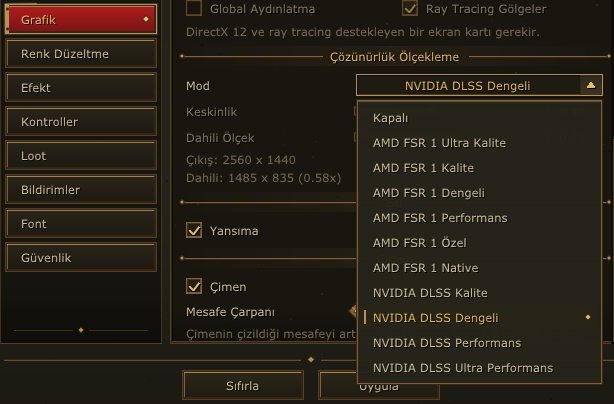
The former "AMD FSR 1" section is now called Resolution Scaling. Next to the AMD FSR 1 modes it now offers the NVIDIA DLSS modes:
NVIDIA DLSS Quality
NVIDIA DLSS Balanced
NVIDIA DLSS Performance
NVIDIA DLSS Ultra Performance
DLSS renders the game at a lower resolution and uses AI to upscale it to your screen resolution. This raises your frame rate (FPS) while keeping most of the image sharpness. Quality mode favours image quality, the Performance modes favour FPS. The Output and Internal lines in the settings menu show the resolution the game is rendered at.
While DLSS is on, DLSS also handles anti-aliasing, so the Anti-Aliasing menu is locked.
Requirements
DLSS and DLAA only work on NVIDIA GeForce RTX graphics cards. On other cards these options do not appear in the menu.
The Post-Processing (HDR) setting must be on.
Works with DirectX 11 and DirectX 12.
An up-to-date NVIDIA driver is recommended.
These features are not available in the mobile version; mobile settings stay as they are.